This guide is for a first home lab. That usually means a Raspberry Pi or a mini PC running Home Assistant, Pi-hole, Jellyfin or a small Proxmox node, a two-bay NAS holding backups and media, and a desk where a gaming PC and a laptop both want a wired connection. If that is you, the network is the part to buy first. Every service you add later rides on it, and a flaky Wi-Fi link or a router with one free LAN port turns a weekend project into an evening of troubleshooting.
The mistake most first-time builders make is spending the budget on compute and leaving the network as an afterthought. A mini PC with 64GB of RAM doesn't help if the NAS it backs up to sits behind a single overloaded router port, or if the lab lives in a back bedroom with one bar of signal. If you're still choosing the compute side, start with the Black Friday mini PC deals for local LLMs and the home-lab single-board computer comparison. Then come back here for the plumbing.
All five picks below are deliberately simple. They are unmanaged switches, a mainstream WiFi 6 router, a mesh kit and a CMR NAS drive. None of them needs a configuration guide, and all five are cheap enough that buying the wrong one is a small mistake, not an expensive one. Every spec comes from the manufacturer's own page, linked inline. Prices aren't quoted in the text, because Black Friday prices move hourly. The live price button on each product is the source of truth.
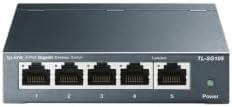
The short version: if you buy only one thing, buy the TL-SG108. More home labs are short of wired ports than of anything else, and it fixes that for very little money.
Step 0: find your bottleneck before you shop
Spend five minutes on this diagnostic before you look at a single deal. Your answers decide which of the five picks you need, and most labs need only one or two of them.
1. Count your wired devices. List everything that should be on Ethernet: the NAS, every server or mini PC, the Pi, the desktop, a game console, a smart TV, and the access points if you run mesh with wired backhaul. Compare that number with the free LAN ports on your router. Most consumer routers, including the Archer AX21, have four. If your list is longer than your free ports, you need a switch. Five to eight devices means the TL-SG108. Two or three extra devices behind a TV or on a desk means the TL-SG105.
2. Map your dead zones. Walk the house with a phone running any free Wi-Fi analyzer app and note where the signal drops below roughly -70 dBm, the point where video calls and streaming start to stutter. If the dead zones are one or two rooms away from the router, a better single router may fix it. If they're on another floor or at the far end of a long house, you need mesh.
3. Check your NAS bays and free space. If the NAS is more than about 80% full, or has an empty bay you've been meaning to fill, storage is your bottleneck. Check whether the drives inside are CMR or SMR (more on that below). An SMR drive in a RAID array is a problem to fix before you add capacity.
4. Check your ISP router. If your internet provider's combo modem-router is your only Wi-Fi, has no WiFi 6, and drops connections under load, the router is the bottleneck. Put it in bridge mode and add the Archer AX21 behind it.
Whichever of the four came up worst is what you buy first. Skip the rest until it actually hurts.
Comparison table of the five picks
Pick
Best for
Key spec
Launch MSRP
Verdict
TP-Link TL-SG108
Adding 5-8 wired devices
8× 1 GbE, 16 Gbps switching capacity, fanless metal case
See live price
Best overall
TP-Link Archer AX21
Replacing a weak ISP router
WiFi 6 AX1800, 1× gigabit WAN + 4× gigabit LAN
See live price
Best value
WD Red Plus 2TB
Filling a NAS bay
CMR recording, 5400 RPM class, SATA 6 Gb/s, 64MB cache
See live price
Best for NAS storage
TP-Link Deco S4 (3-pack)
Multi-floor coverage
AC1900 mesh, up to 5,500 sq ft, 3× gigabit ports per unit
Price tiers in this guide go by each product's current tracked price: budget is under $20, mid is $20 to $100, and premium is over $100. Both switches sit in the budget tier, while the router and the mesh kit are mid. The NAS drive's tier depends on capacity, so compare its live price per terabyte before you buy.
🏆 Best Overall: TP-Link TL-SG108 8-Port Gigabit Switch
Spec chips: 8× 10/100/1000 Mbps ports · 16 Gbps switching capacity · 11.9 Mpps forwarding · 16KB jumbo frames · 3.3W max power · fanless metal case. All figures are from TP-Link's TL-SG108 spec page, except switching capacity, which is the standard figure for eight full-duplex gigabit ports.
✅ Eight ports covers a whole first lab: NAS, two servers, a Pi, a desktop and room to spare ✅ Fanless and silent, so it can live on a desk or a bookshelf ✅ 3.3W maximum draw, so running it 24/7 costs very little ✅ Metal case with wall-mount holes; it runs plug-and-play with no setup
❌ Unmanaged: no VLANs, no link aggregation, no port mirroring ❌ No PoE, so access points and cameras need their own power bricks ❌ Gigabit only, with no 2.5 GbE ports
The TL-SG108 is the pick because it fixes the most common home-lab problem at the lowest risk. Plug one router LAN port into it and you have seven free gigabit ports. Each port can carry full line rate at the same time, which is what 16 Gbps of switching capacity means in practice. A NAS backup and a 4K stream won't fight each other for bandwidth.
When it's right: you're out of router ports, your devices sit in one room or one rack shelf, and you have no plans for VLANs this year. That describes most first home labs. The 16KB jumbo-frame support also helps if you later turn on jumbo frames between a NAS and a server on the same switch.
When it isn't: if you want to put IoT devices on their own VLAN, run a pfSense or OPNsense firewall with tagged traffic, or power a PoE access point, skip this and buy a smart or managed PoE switch instead. It costs more, but adding VLANs later means replacing the whole switch anyway. If your NAS is all-SSD and you move large VM images every day, look at 2.5 GbE gear. Gigabit tops out at roughly 110-118 MB/s of real file-copy throughput, which is the practical ceiling of 1 Gbps after protocol overhead.
💰 Best Value: TP-Link Archer AX21 (AX1800 WiFi 6 Router)
Spec chips: WiFi 6 (802.11ax), dual-band AX1800 (1201 Mbps on 5 GHz + 574 Mbps on 2.4 GHz) · 1× gigabit WAN + 4× gigabit LAN · four antennas with beamforming · OFDMA and Target Wake Time · EasyMesh-compatible. Per TP-Link's Archer AX21 page.
✅ WiFi 6 with OFDMA handles many clients at once better than an older WiFi 5 ISP router ✅ Four gigabit LAN ports, enough for a small lab before you add a switch ✅ EasyMesh support, so you can extend it with a compatible mesh unit later ✅ Mid-tier price for a current-generation router
❌ Dual-band only, with no 6 GHz (WiFi 6E) band ❌ A single unit won't cover a large multi-floor home ❌ Ports are 1 GbE, with no multi-gig WAN for 2 Gbps+ internet plans
The Archer AX21 is the router for people whose real problem is the box their ISP handed them. Many ISP combo units are WiFi 5, have weak radios, and limit which settings you can change, such as DNS servers for a Pi-hole or DHCP reservations for your lab machines. Put the ISP unit in bridge mode, put the AX21 behind it, and you control the network.
When it's right: an apartment, a condo or a single-floor home up to a moderate size, with the lab in the same area as the router. Its four LAN ports plus a TL-SG105 or TL-SG108 behind it cover almost any first lab.
When it isn't: a multi-floor house with thick walls, a detached garage lab, or a long ranch layout. One router, however good, can't push a usable signal through three floors of drywall and a concrete slab. Buy the Deco S4 instead. Skip it too if your internet plan is faster than 1 Gbps, because a gigabit WAN port caps you below what you're paying for.
🎯 Best for NAS Storage: WD Red Plus 2TB NAS Hard Drive
Spec chips: CMR (conventional magnetic recording) · 5400 RPM class · SATA 6 Gb/s · 64MB cache · 3.5-inch · NAS-rated firmware. Per Western Digital's WD Red Plus product page and the WD20EFRX model listing.
✅ CMR recording, the safe choice for RAID arrays and rebuilds ✅ NAS firmware tuned for always-on, multi-drive enclosures ✅ The 5400 RPM class runs cooler and quieter than 7200 RPM drives in a small enclosure ✅ An easy way to fill an empty bay in a two- or four-bay NAS
❌ 2TB is small for a media library, so larger capacities are often cheaper per terabyte ❌ The slower spindle class means lower sequential throughput than 7200 RPM Pro drives ❌ It's a hard drive: it doesn't replace an SSD for VM storage
The WD Red Plus 2TB is here because recording technology matters more in a NAS than almost any other drive spec. In 2020 Western Digital split its NAS line: the plain WD Red moved to SMR (shingled) recording, and Red Plus became the CMR line, as shown in WD's current Red Plus listing. SMR drives overlap their write tracks, so sustained writes, the exact workload of a RAID rebuild, can slow sharply. In a degraded array, a slow rebuild is the window in which a second drive failure loses data.
When it's right: you need to fill a bay, add a mirror drive to a two-bay NAS, or replace a failing drive in an existing array of 2TB drives. Match capacities within an array, because a RAID set built from mixed sizes only uses the smallest drive's capacity.
When it isn't: if you're building a new array from scratch, price the 4TB, 8TB and larger Red Plus models per terabyte before you buy the 2TB. For a media server, larger drives almost always win on cost per terabyte and use fewer bays. And if the NAS hosts VM disks or databases, add an SSD cache or an SSD pool. No 5400 RPM-class drive is fast for random I/O.
Spec chips: AC1900 (1300 Mbps on 5 GHz + 600 Mbps on 2.4 GHz) · 3×3 MU-MIMO · 3× gigabit WAN/LAN ports per unit · optional gigabit Ethernet backhaul · 100+ devices · up to 5,500 sq ft for the 3-pack. Speed, port and backhaul figures are per TP-Link's Deco S4 page; the coverage figure is from TP-Link's 3-pack listing.
✅ Three units with a single network name, so devices roam between rooms without dropping ✅ Three gigabit ports on every unit, which means wired drops in three rooms ✅ Optional Ethernet backhaul to get the most out of the mesh ✅ Coverage for multi-floor homes that no single router reaches
❌ WiFi 5 (AC), not WiFi 6, so peak client speeds trail newer mesh kits ❌ Wireless backhaul shares airtime with clients and costs throughput ❌ More hardware to place and power than a single router
The Deco S4 earns "best performance" because, in a large home, coverage is performance. A WiFi 6 router whose signal fades two rooms away delivers less real throughput than a WiFi 5 mesh unit sitting in that room. The overlooked feature for home labs is the three gigabit ports on every Deco unit. A satellite unit in the office doubles as a small switch for a desktop and a printer.
The wired-backhaul tip: if your house has Ethernet runs between rooms, or you can run one flat cable along a baseboard, connect the Deco units to each other by Ethernet. TP-Link documents this as optional Ethernet backhaul on the Deco S4 page. With it, the units stop spending wireless airtime relaying traffic to each other, and that airtime goes to your devices instead.
When it's right: two or more floors, dead zones the Step 0 walk-through confirmed, and many wireless clients spread across the house.
When it isn't: a small apartment, where three mesh units are overkill and the Archer AX21 does the job. Skip it too if you want the newest Wi-Fi standard for high-end laptops and phones, because the S4 is a WiFi 5 kit. Either way, keep the lab itself wired. Mesh is for clients, not servers.
Spec chips: 5× 10/100/1000 Mbps ports · 10 Gbps switching capacity · IEEE 802.3x flow control · fanless metal case · desktop or wall mount. Per TP-Link's TL-SG105 page; switching capacity is the standard figure for five full-duplex gigabit ports.
✅ The cheapest way to turn one Ethernet drop into four ✅ Small enough to hide behind a TV or under a desk ✅ Fanless, silent and plug-and-play ✅ Metal case with wall-mount option
❌ Only four usable ports after the uplink ❌ Unmanaged: no VLANs, no PoE ❌ Gigabit only
The TL-SG105 solves the "one wall jack, four devices" problem. The classic case is the TV cabinet: a smart TV, a game console, a streaming box and an HDMI-CEC hub all want Ethernet, and there's one cable coming out of the wall. The same goes for a desk with a desktop, a laptop dock and a Pi.
When it's right: you need two to four extra ports in one spot, away from the main switch. Many labs end up with a TL-SG108 at the core and a TL-SG105 at the edge.
When it isn't: if you're already filling all five ports today, buy the TL-SG108 instead. The price gap is small, and a switch with no spare ports is full the day you add one more device.
Black Friday 2026 timing: when to buy and who should wait
Black Friday falls on 2026-11-27 and Cyber Monday on 2026-11-30. Retailers often start discounts days before Black Friday and keep them running past Cyber Monday, so treat the whole stretch as one buying window, not two separate days.
How to judge a price: ignore the strike-through "was" price on the listing. Compare the live price with that product's own 60-90 day price history from any price tracker. If the live price is inside its usual range, it isn't a deal, it's just the price. If it's below the bottom of that range, it's a reasonable time to buy. Network gear like this goes on sale regularly, so you lose little by passing on an ordinary price.
Who should buy now: anyone whose Step 0 diagnostic found a real bottleneck: out of ports, dead zones, a full NAS, or an ISP router that drops connections. These are low-cost, long-life products. A switch bought this week will still be in your rack in 2030.
Who should wait: anyone who needs 2.5 GbE, PoE or managed VLANs. None of these five picks offer any of them, and buying a gigabit unmanaged switch now only to replace it in six months is the most expensive way to do it. Wait, save the budget, and buy the managed or multi-gig gear you actually need.
Prices change throughout the event, sometimes several times a day. The live price button on each pick is the source of truth, not any number you read in an article, including this one.
What to look for in home-lab network gear
Gigabit vs 2.5 GbE: when 1 GbE is enough
Gigabit Ethernet moves roughly 110-118 MB/s in real file copies. A single NAS hard drive reading large sequential files lands in the same range, so in a one- or two-drive NAS, the drive and the network are evenly matched. 2.5 GbE pays off when you have SSD storage, a multi-drive array that reads faster than one drive, or machines that move tens of gigabytes every day. It only helps if both ends and the switch all support it.
Unmanaged vs managed switches
An unmanaged switch just forwards traffic. A managed or "smart" switch adds VLANs, link aggregation, port mirroring and QoS rules. The first time you want your IoT devices walled off from your NAS, you need VLANs, and that means a managed switch plus a router or firewall that understands tagged traffic.
WiFi 6 vs mesh coverage
WiFi 6 is a better radio standard: it handles many clients at once more efficiently. Mesh is a better coverage layout. They solve different problems. A WiFi 6 router won't reach a third floor any better than a WiFi 5 one, and a WiFi 5 mesh kit will. Pick the one that matches what Step 0 found.
CMR vs SMR NAS drives
For any drive going into a RAID or ZFS pool, choose CMR. Drive makers now state the recording type on product pages, so check before you buy, especially with marketplace listings and refurbished drives.
Power draw for 24/7 gear
Lab gear runs all day, every day, so watts become money. A switch with a 3.3W maximum, like the TL-SG108, draws under 30 kWh a year even at full load. Older enterprise switches pulled from a datacenter can draw many times that, plus fan noise. For a home lab, the small fanless switch is the cheaper one to run as well as to buy.
The mistake buyers often make
The most common layout mistake is putting the bottleneck upstream of the NAS. For example: the NAS hangs off an old 100 Mbps switch, a powerline adapter or a Wi-Fi bridge, while the client sits on gigabit. Every backup and stream then runs at the speed of the slowest link in the path. Plug the NAS and the machines that talk to it most into the same gigabit switch. Traffic between them never touches the router.
As an Amazon Associate, SpecPicks earns from qualifying purchases; we also earn on qualifying eBay purchases via the eBay Partner Network. Prices shown were last tracked at crawl time and may vary — check the listing for the current price.
Frequently asked questions
Is a gigabit switch still enough for a home lab in 2026?
For most first home labs, yes. A single hard drive in a NAS reads sequentially at well under gigabit line rate, and Pi-class boards and most mini PCs ship with 1 GbE ports. Move to 2.5 GbE only when you run SSD-backed NAS storage or move large VM images between machines every day.
Should I buy an unmanaged or a managed switch for a home lab?
An unmanaged switch like the TL-SG105 or TL-SG108 is plug-and-play and right for adding ports. Buy a managed or smart switch instead when you need VLANs to isolate IoT devices, link aggregation, or port mirroring for traffic analysis. Neither unmanaged pick in this guide supports those features.
Why does a NAS drive need CMR rather than SMR recording?
SMR drives overlap their write tracks, which can slow sustained writes and stretch RAID rebuild times dramatically. WD markets the Red Plus line as CMR for exactly this reason. In a multi-drive NAS that rebuilds after a failure, CMR keeps the array responsive and lowers the risk during the rebuild window.
Mesh Wi-Fi or a single WiFi 6 router for a home lab?
A single WiFi 6 router like the Archer AX21 suits apartments and single-floor homes where the lab sits near the router. Mesh like the Deco S4 suits multi-floor homes with dead zones. Either way, wire your servers and NAS by Ethernet. Wi-Fi is for clients, not for lab infrastructure.
Will these be cheaper on Cyber Monday than on Black Friday?
Nobody can promise that, and prices move throughout the event. Judge any price against the listing's own 60-90 day range rather than a strike-through 'was' price. If the live price sits inside its recent range, waiting is a gamble. If it sits below that range, it is a reasonable time to buy.